It generates a new adult AI clip from an authorized image and a motion prompt. It is not a deterministic animation of every pixel. Available content, duration, and controls depend on the model you choose.
Begin with an image, describe what happens next.
Uncensored AI image to video uses an authorized still as the starting reference for a new clip. The image establishes appearance and composition; your prompt describes movement after that frame. This photo-to-video AI workflow suits adult portraits and scenes where the starting look matters. NSFW image-to-video support depends on the selected model, and exact source preservation is not guaranteed.
By AI Uncensored VideoLast updated:
Give the starting frame one motion brief
Check the source before writing the prompt. A readable composition and a small, deliberate movement make it easier to judge how the generated clip follows the image.
- 01
Check the source image
Use a clearly adult image you have the rights and informed consent to process. Inspect the crop, face, hands, and space around the subject. Follow the selected model’s upload requirements.
- 02
Describe the change after the still
Name the subject action, camera movement, and pace. Let the source carry wardrobe and appearance. Begin with a gentle movement rather than asking the model to rebuild the scene.
- 03
Choose the setup and inspect the clip
Select a compatible model, framing, and available duration. Review Credits before submission. Compare the finished clip with the source, especially details that matter for your intended use.
Motion briefs for a starting image
These illustrative stills suggest three directions for an authorized adult source. They are not verified outputs of these prompts. A track reveals depth, a dolly changes emphasis, and an orbit asks for a broader change in viewpoint.
Swipe horizontally to explore all three examples.
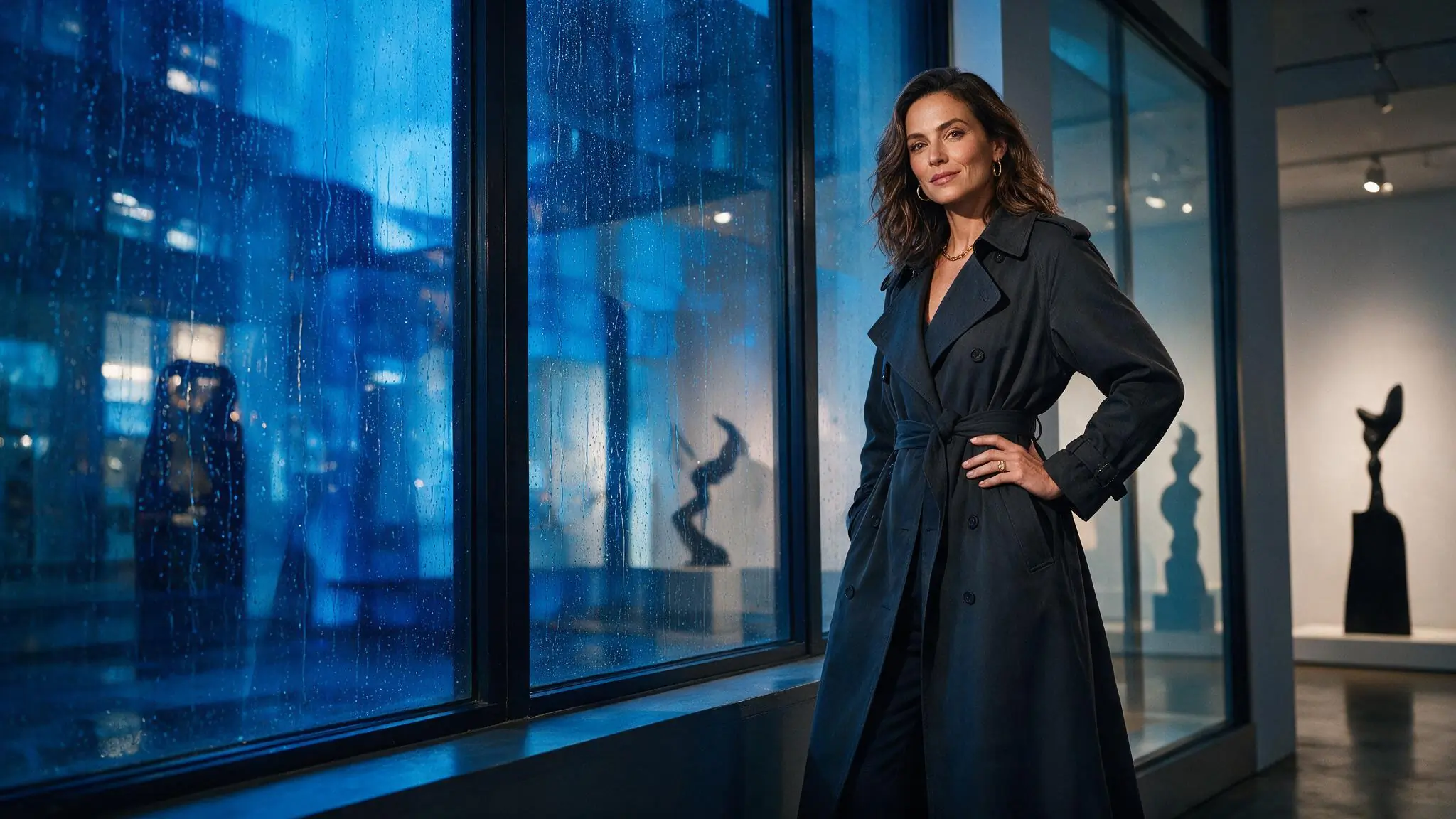
Track along the gallery
PromptTrack slowly beside the subject. Keep the gallery framing as rain reflections move across the glass; use an unhurried pace.
Keep lateral camera motion separate from the movement inside the scene.
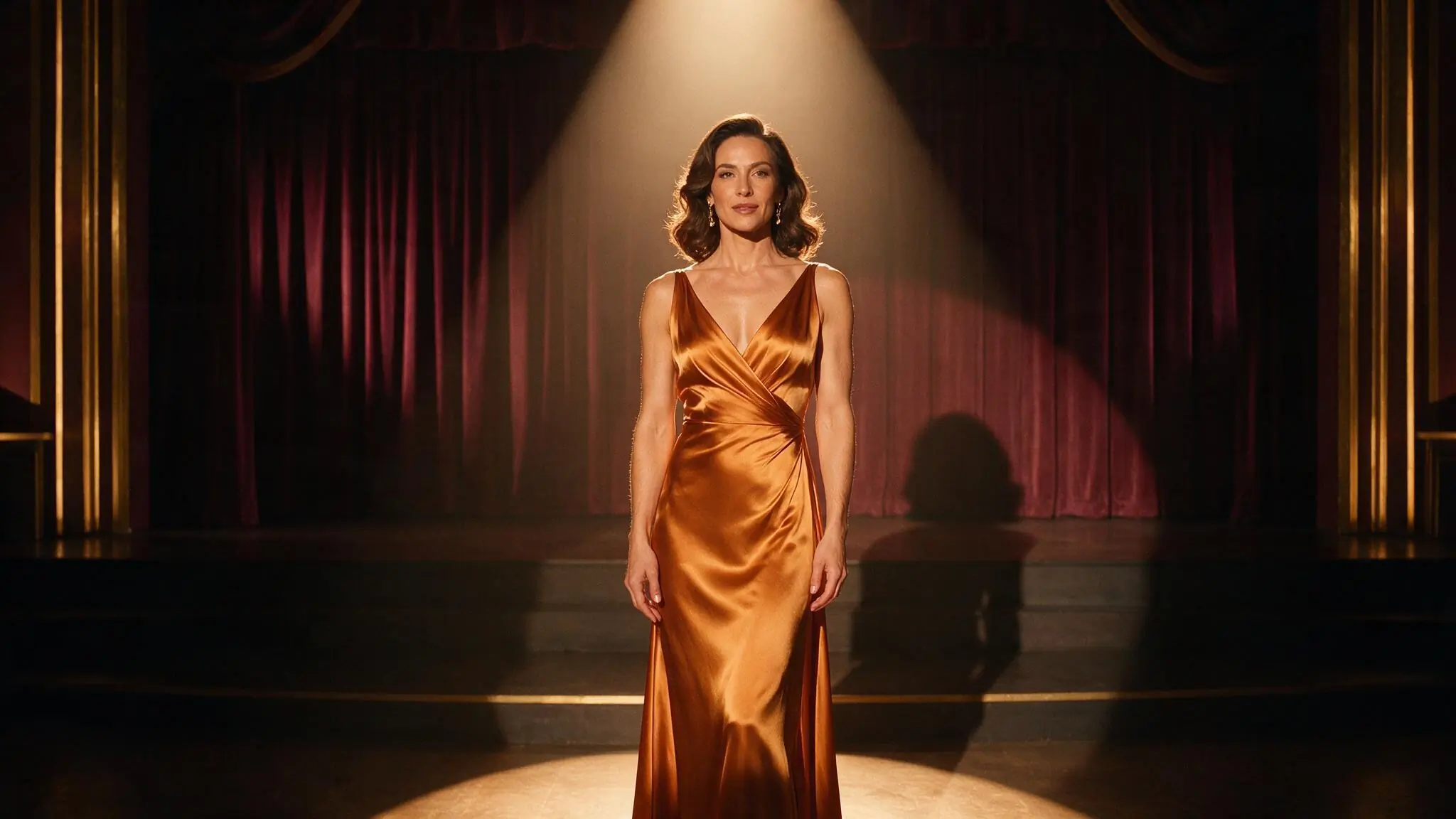
Move toward the performer
PromptGently dolly toward the performer on stage. Keep the centered framing, with a small gown movement and steady warm light.
The stage’s symmetry provides a useful visual anchor for comparison.
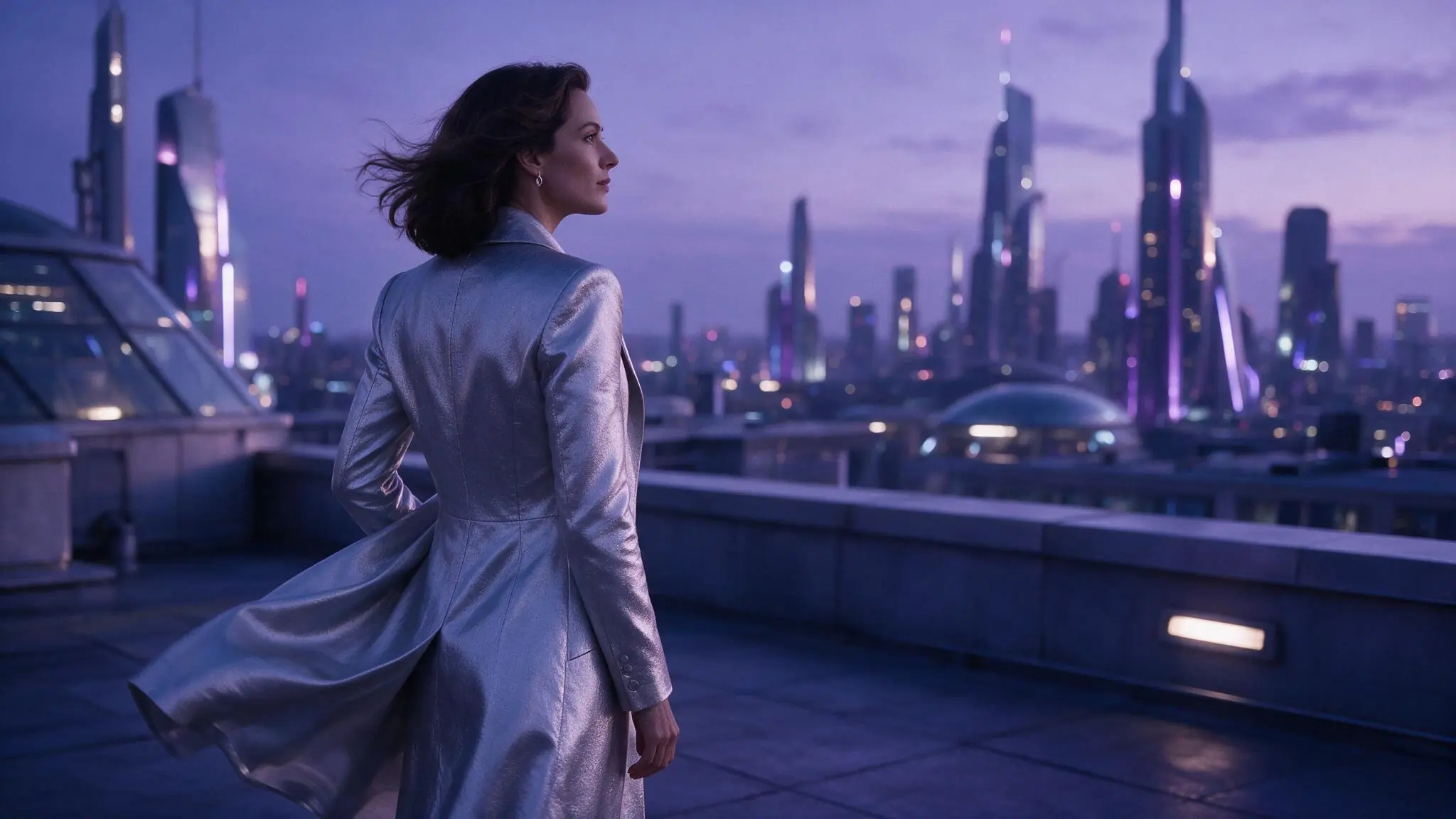
Explore a rooftop viewpoint
PromptMove in a slow orbit around the rooftop silhouette. Keep the horizon level and let the fabric shift gently with the subject.
A viewpoint change can introduce new details; inspect them before using the result.
Match the output to the source
Choose the frame and motion around what is already visible. A different model, crop, or duration can change both the result and the Credits required.
| Goal | Focus on | Why it helps |
|---|---|---|
| Retain the starting composition | An aspect ratio close to the source | A large crop change can remove the visual anchors you want to keep. |
| Give camera movement room | Visible space around the subject | A track or pan needs room to show the setting; tightly cropped sources leave less context. |
| Evaluate source consistency | A restrained first movement | Small changes make it easier to inspect the face, hands, clothing, and background. |
| Decide what to spend | The complete model and output setup | Check the estimate after making all selections; source appearance alone does not determine cost. |
When motion changes too much
Treat the source as the reference and the prompt as the change request. Simplify movement first, then compare a new result before introducing another setting change.
- The crop drifts
- Use framing closer to the source and name the composition you want to retain.
- Movement looks unnatural
- Reduce the range and pace; ask for one action instead of several body movements.
- The background is rebuilt
- Remove instructions that describe a new setting and keep environmental movement specific.
- The camera dominates the clip
- Try a gentle dolly or locked frame before a large orbit or rapid tracking move.
NSFW Image to Video questions
Answers about this workflow, its inputs, and the choices to review before submitting.
Use a clearly adult source you created or have permission and informed consent to process. Check the live upload requirements for file type, size, and quantity. A publicly visible photo does not establish permission for an adult depiction.
Usually, focus on what should move after the starting frame. Name the subject action, camera direction, and pace. Repeat a visible detail only when it is an important constraint, such as retaining the centered composition.
No exact preservation is guaranteed. The model may change a face, hand, outfit, crop, or background. Compare the clip with the source and review any details that matter before downloading or sharing.
The converter guide explains this same generative workflow. It helps you prepare the source and motion brief; this page is the actual tool for uploading an image, selecting a model, and submitting a request.
Yes. Inspect the tool and prepare your brief without purchasing Credits. Generation requires sign-in and the Credits shown for the selected model and settings. A tool preview is not a free-generation offer.
Give the still a motion direction
Bring your authorized source to the tool above, start with one movement, and review the setup and Credits.