It creates an edited still from an authorized image and a text request. The model generates a new result; it is not a deterministic pixel editor. Use the separate image-to-video tool when you want motion.
Change the image, keep the brief focused.
The uncensored AI image editor creates a new still from an authorized source and an editing prompt. Ask for a change to lighting, styling, composition, or setting while identifying what should stay important. NSFW image-to-image requests depend on the chosen model’s rules. This workflow prepares images; it does not add video motion or guarantee pixel-perfect preservation.
By AI Uncensored VideoLast updated:
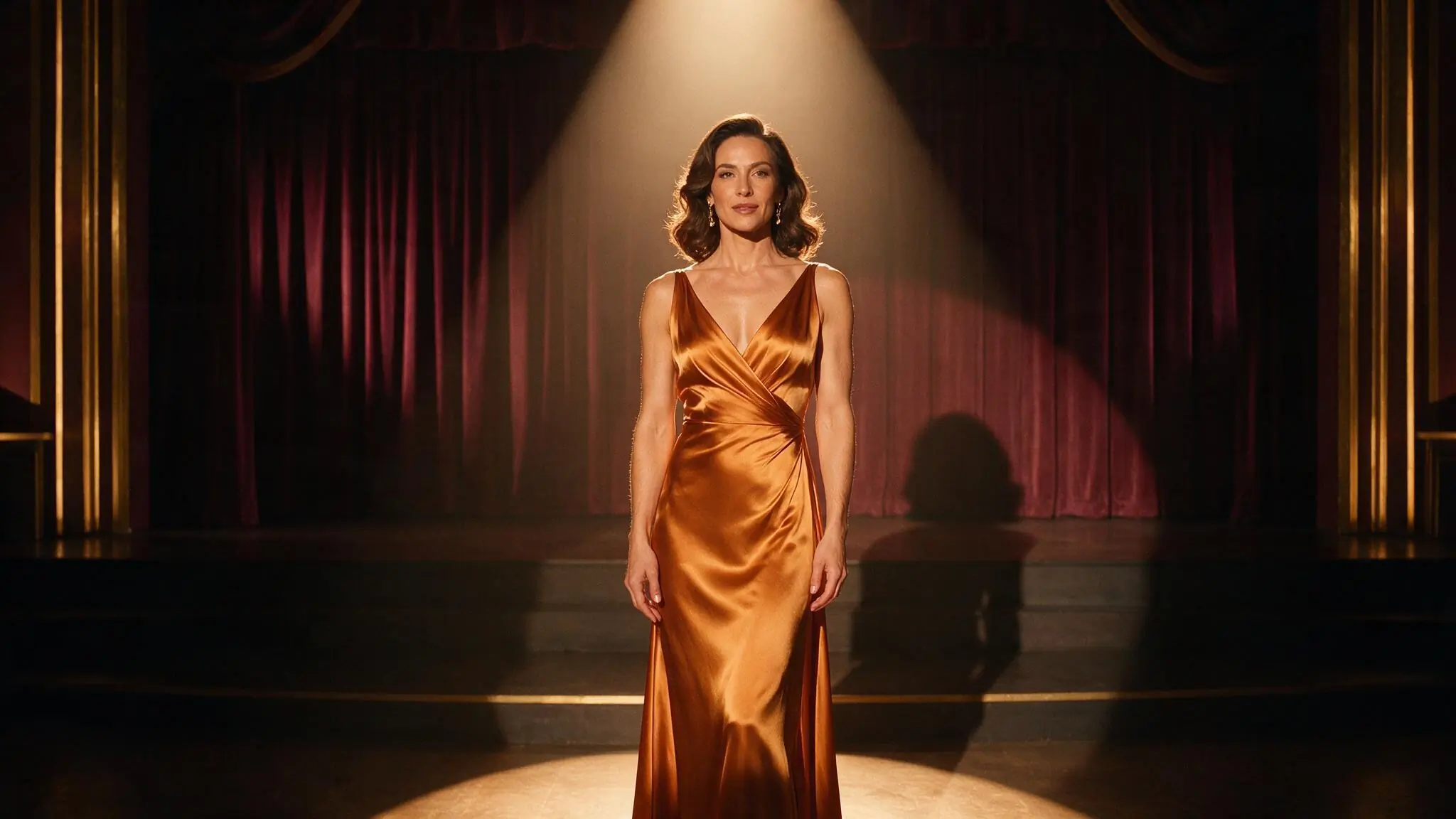
Describe one edit and one anchor
Start from the strongest source available. Name the change you want and the element you want to keep, then compare the result before requesting another edit.
- 01
Inspect the authorized source
Check the adult subject, crop, face, hands, and background. Use an image you have the rights and informed consent to process, and follow the model’s input requirements.
- 02
Write a specific editing request
Ask for one main change, such as warmer lighting or a different setting. Name a visual anchor, such as the pose or centered framing, instead of asking to preserve every pixel.
- 03
Review the new still
Select a supported model and check Credits before submission. Compare the result with the source. Save a suitable edit before bringing it into the video workflow.
Three ways to refine a source
These illustrative images help explain edit briefs. They are not before-and-after results or evidence that these prompts preserve identity. Compare wardrobe, setting, and lighting as separate editing tasks.
Swipe horizontally to explore all three examples.
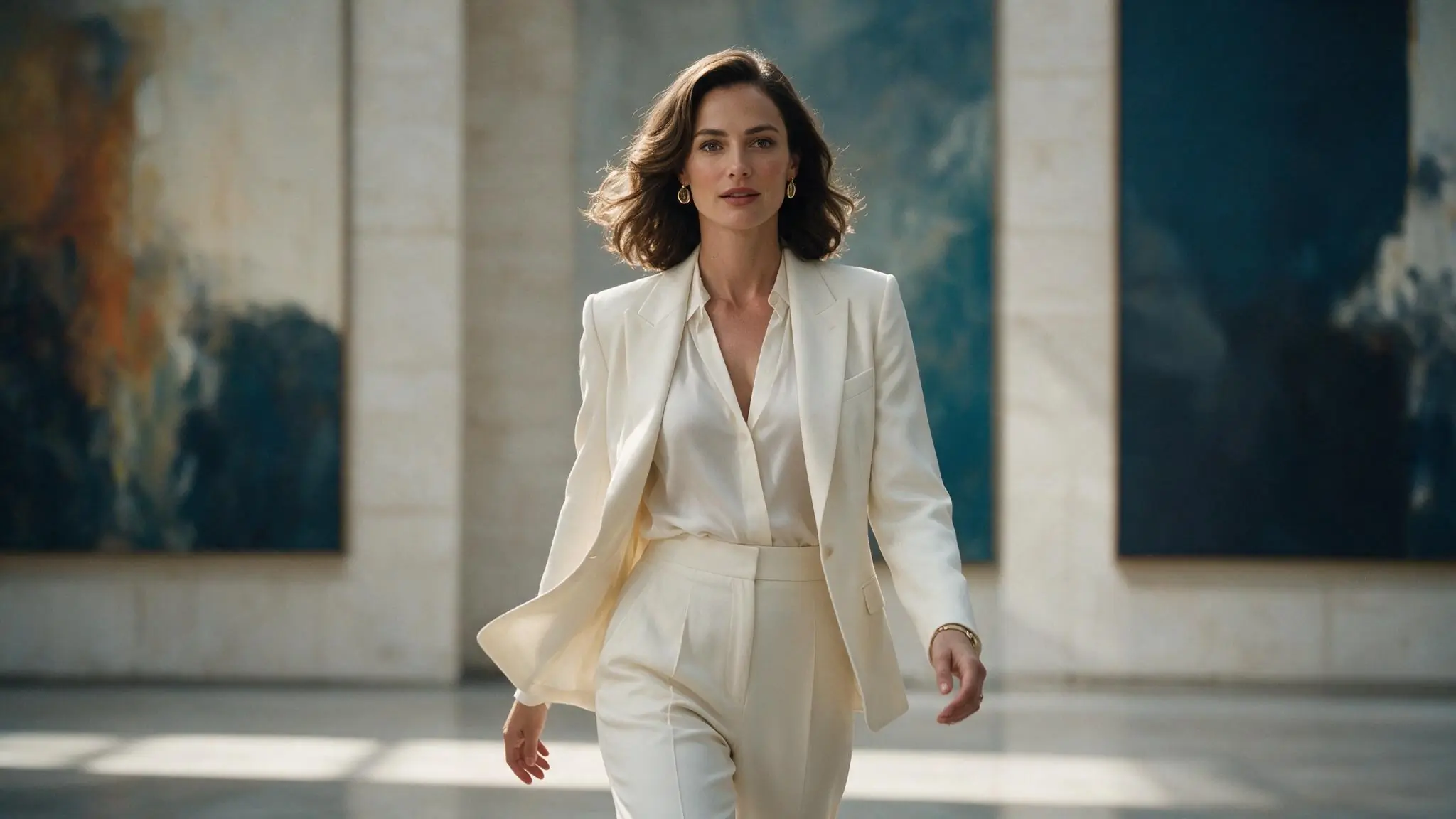
Refine the wardrobe direction
PromptUse evening tailoring for the adult subject while retaining the portrait crop and relaxed pose. Keep the gallery setting and soft daylight.
Treat wardrobe as the change and the crop as the anchor.
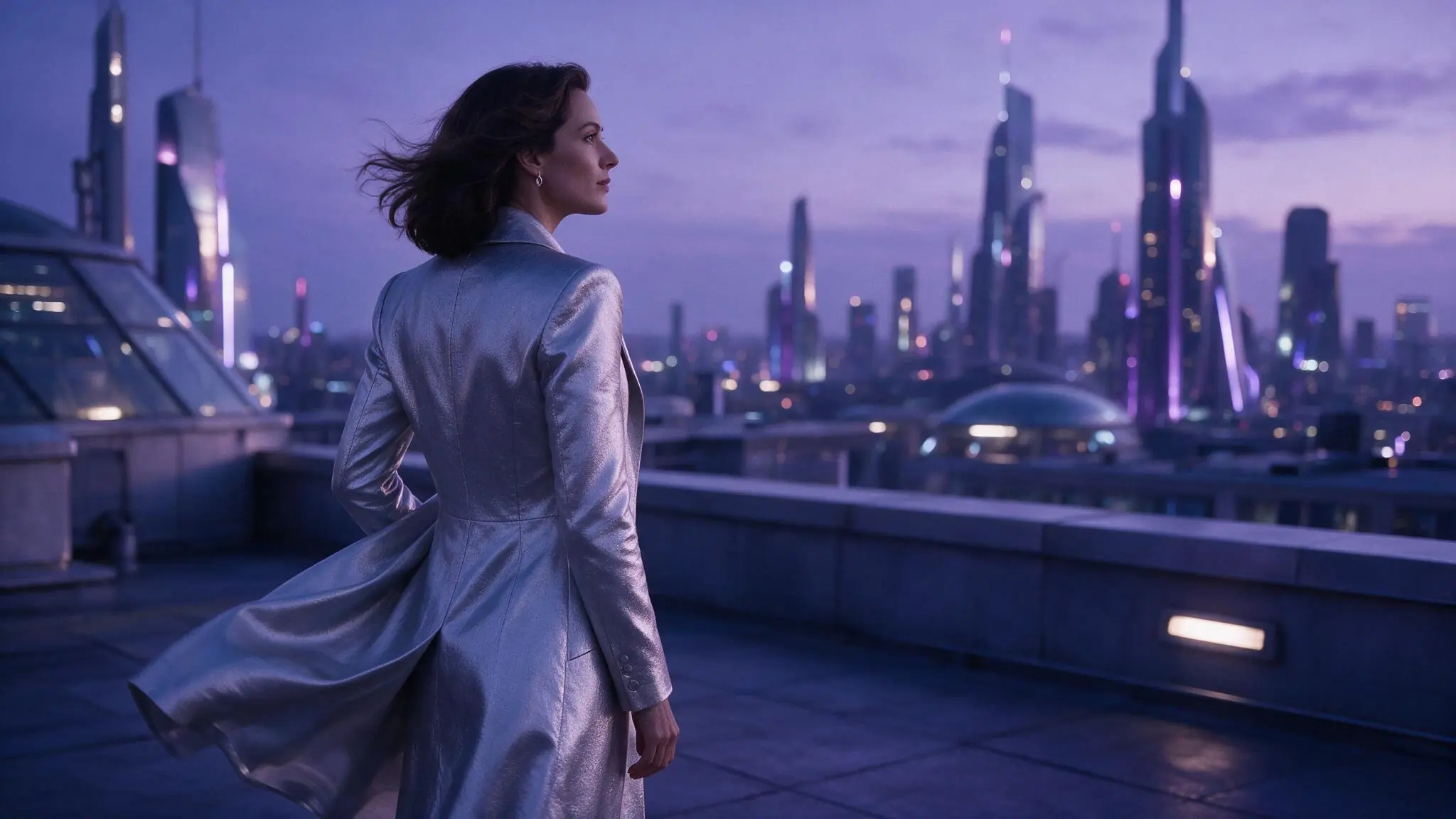
Change the surroundings
PromptPlace the adult rooftop subject against a quieter silver-blue skyline. Keep the silhouette and horizon level; simplify background details.
Change the setting without adding a competing pose or camera angle.
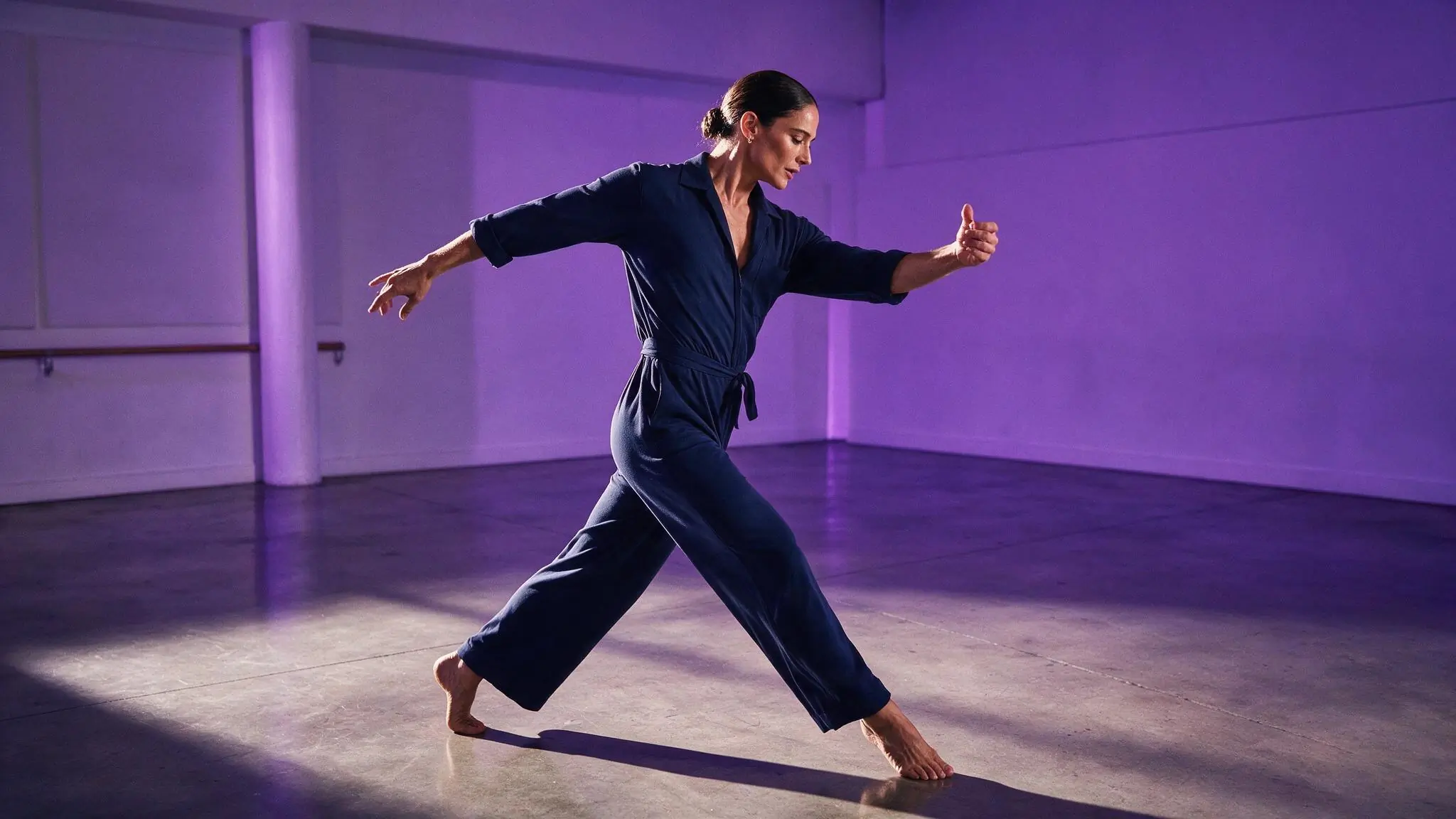
Adjust the scene lighting
PromptUse soft violet side light on the adult dancer. Keep the standing pose and wide framing, with a subdued background.
One lighting direction is easier to compare than several style changes together.
Select settings for the edit
The source and requested change guide the setup. Available input controls and output framing vary by model; review them before spending Credits.
| Goal | Focus on | Why it helps |
|---|---|---|
| Keep the portrait framing | A ratio close to the source | A similar frame makes crop changes easier to spot when comparing results. |
| Prepare a video reference | Space around the intended action | An edit can improve the starting composition before you request motion separately. |
| Compare alternate lighting | A stable source and model | Change the light instruction while keeping other choices steady. |
| Check the cost of a revision | The current estimate before each task | Every new edit is a generation request; do not assume previous settings imply the same cost. |
When the edit loses the source’s direction
Return to the original source and the main requested change. Stacking revisions can make it harder to see which instruction caused a mismatch.
- The face or hands change
- Reduce the requested transformation and inspect a new result; exact identity preservation is not guaranteed.
- The pose shifts with the wardrobe
- Keep the wardrobe request separate and explicitly name the source pose as an anchor.
- The setting competes with the subject
- Simplify the background request and remove new props that distract from the portrait.
- Successive edits become inconsistent
- Start again from the strongest source rather than stacking several changed outputs.
NSFW Image to Image questions
Answers about this workflow, its inputs, and the choices to review before submitting.
Start with one change to light, styling, setting, or composition. Add one visual anchor you want to keep, such as the pose or crop. Compare the result before combining several changes in another request.
Only with the rights and informed consent required for the processing and intended adult use. Every depicted person must be an adult. The workflow must not be used for non-consensual intimate depictions or unauthorized impersonation.
No. A generated edit can change details you did not request, including the face, hands, wardrobe, or background. Compare the whole result with the source before saving, sharing, or using it for video.
Save a suitable, authorized result and open Image to Video. Use the still for appearance and composition, then write a separate motion prompt. Editing an image and generating a video are distinct tasks with separate Credit estimates.
Choose a model that accepts the source and supports the intended edit. Review its live input requirements, output controls, and estimate before submitting. NSFW positioning does not make all models equivalent.
Make one useful change
Bring your authorized source to the editor above, name the main edit, and review the result before planning its next use.